
The short answer
- Install Candidra (free) and choose Add a folder for your photos.
- In Settings, set up visual search. Candidra downloads its model once, about 605 MB.
- Type what you remember: “birthday cake”, “snow on the mountains”, “receipt from the hardware store”.
File Explorer finds files by name and date, so to Windows your best beach photo is just IMG_4821.HEIC. Some new Copilot+ PCs have started adding descriptive search, but most Windows PCs can’t search by what’s actually in a picture. Here’s how to do it on any Windows 10 or 11 PC, without uploading your library anywhere.
How describing-a-photo search works
Candidra uses an AI model that runs on your own PC. It looks at each photo once and saves what it sees in a private index on your computer. When you type a description, it compares your words with that index and shows the closest photos, each with a note on why it matched. It also reads text inside images, so signs, tickets and receipts are searchable too.
 Candidra–□✕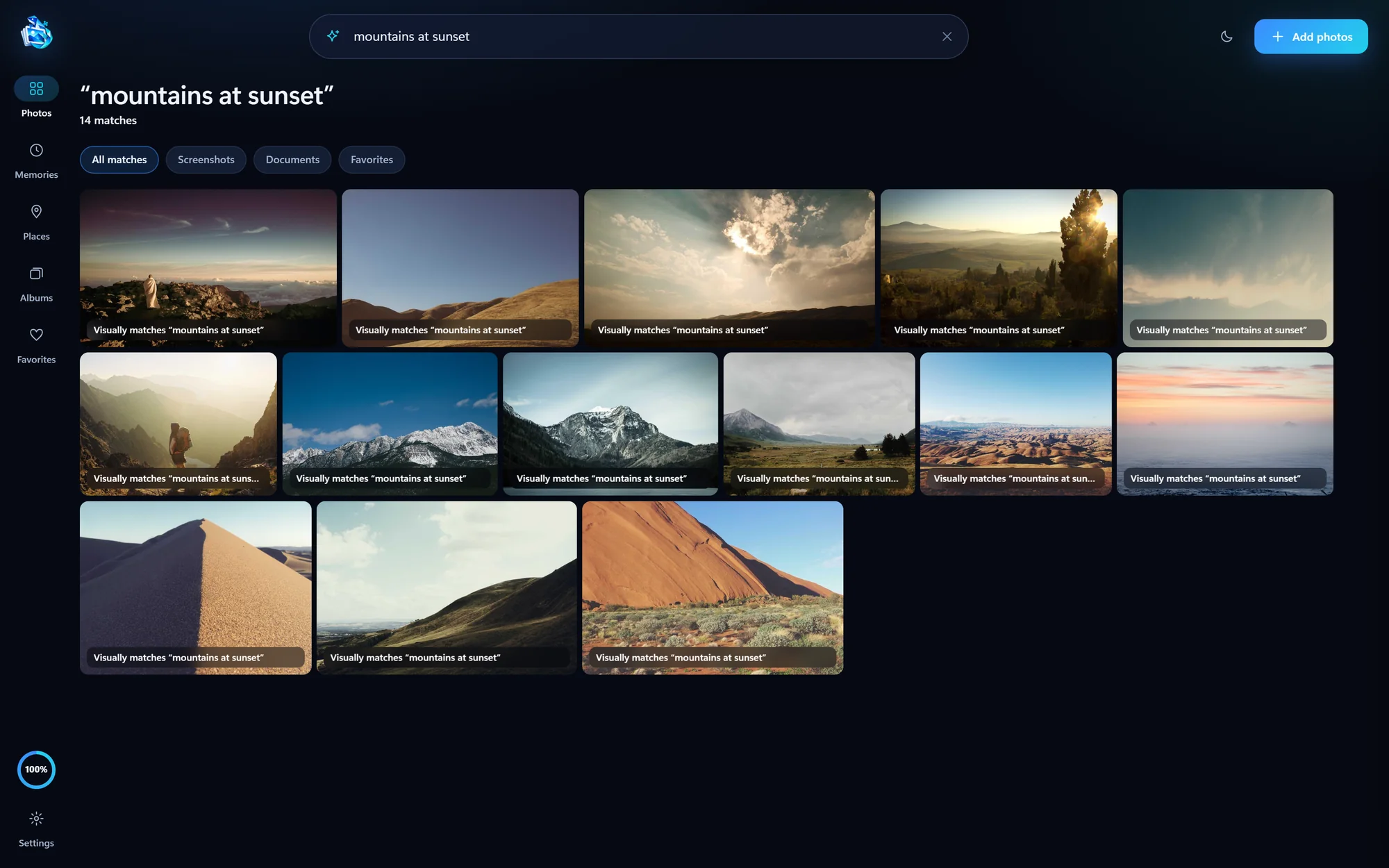
1. Install Candidra and add your folders
Download Candidra and run the installer. Choose Add a folder for each place you keep photos, such as your Pictures folder or the folder PixelBeam saves your iPhone photos to. Your originals stay exactly where they are; Candidra builds its own previews and index beside them.
2. Turn on visual search
Open Settings and set up visual search. Candidra downloads its model from Hugging Face once, about 605 MB, and then analyzes your photos on your PC. It uses an NVIDIA, AMD or Intel graphics card when it can and falls back to the CPU otherwise, which makes the first pass slower but works on any 64-bit Windows 10 or 11 PC. Candidra shows how many photos are ready so far.
3. Search the way you remember
- Describe the scene, not the file: “kids on a sled”, “sunset over water”, “cat asleep on a laptop”.
- Add a detail to narrow it: “red car in the snow” instead of “car”.
- Search the words in a picture: a shop name on a receipt, a street sign, a whiteboard.
- Use the filters to limit results to screenshots, documents or favorites.
4. Browse when you don’t know what to type
Sometimes you remember when or where, not what. Memories gathers trips and your biggest days from the dates and places saved in your photos, Places puts them on a map, and All photos zooms out until thousands fit on one screen.
Questions people ask
Do I need a Copilot+ PC or an NPU?
No. Candidra runs on any 64-bit Windows 10 or 11 PC. A graphics card makes the first analysis faster, and the CPU works without one.
Are my photos uploaded anywhere?
No. Candidra analyzes your photos and your searches on your PC. It only goes online to download its model once, to load map tiles when you open Places, and to check for app updates.
Does it work offline?
Yes. Once the model is downloaded and your photos are analyzed, visual search runs offline.
Will it move or rename my photos?
No. Your originals stay in their folders, unchanged.